Prepare the Mac
Install Docker Desktop and XQuartz. Start Docker Desktop and make sure your Mac is connected to the internet before installing.
XQuartz provides the graphical display for NAM. Keep it installed to view network animations.
See the compatibility guide for platform and display requirements.
Run the installer
Open Terminal and run the install command from the project README:
curl -fsSL https://raw.githubusercontent.com/Deeptanu2005/NS2-Nam-MacOS/main/install.sh | bashThe installer downloads the project files to ~/NS2Nam, configures XQuartz, builds the Docker environment, installs the global ns2 command, adds the sample simulation, and verifies NS-2, NAM, and Tcl.
Open your NS-2 workspace
Start the interactive container shell from Terminal:
ns2Inside the environment, the simulation directory on your Mac is mounted at /simulations. You can use ns, nam, and tclsh.
Run the sample
From the NS2-Nam shell, run:
ns send_receive.tclThe sample creates send_receive.nam and launches NAM when the simulation finishes. To open the trace manually, run nam send_receive.nam from the simulations directory.
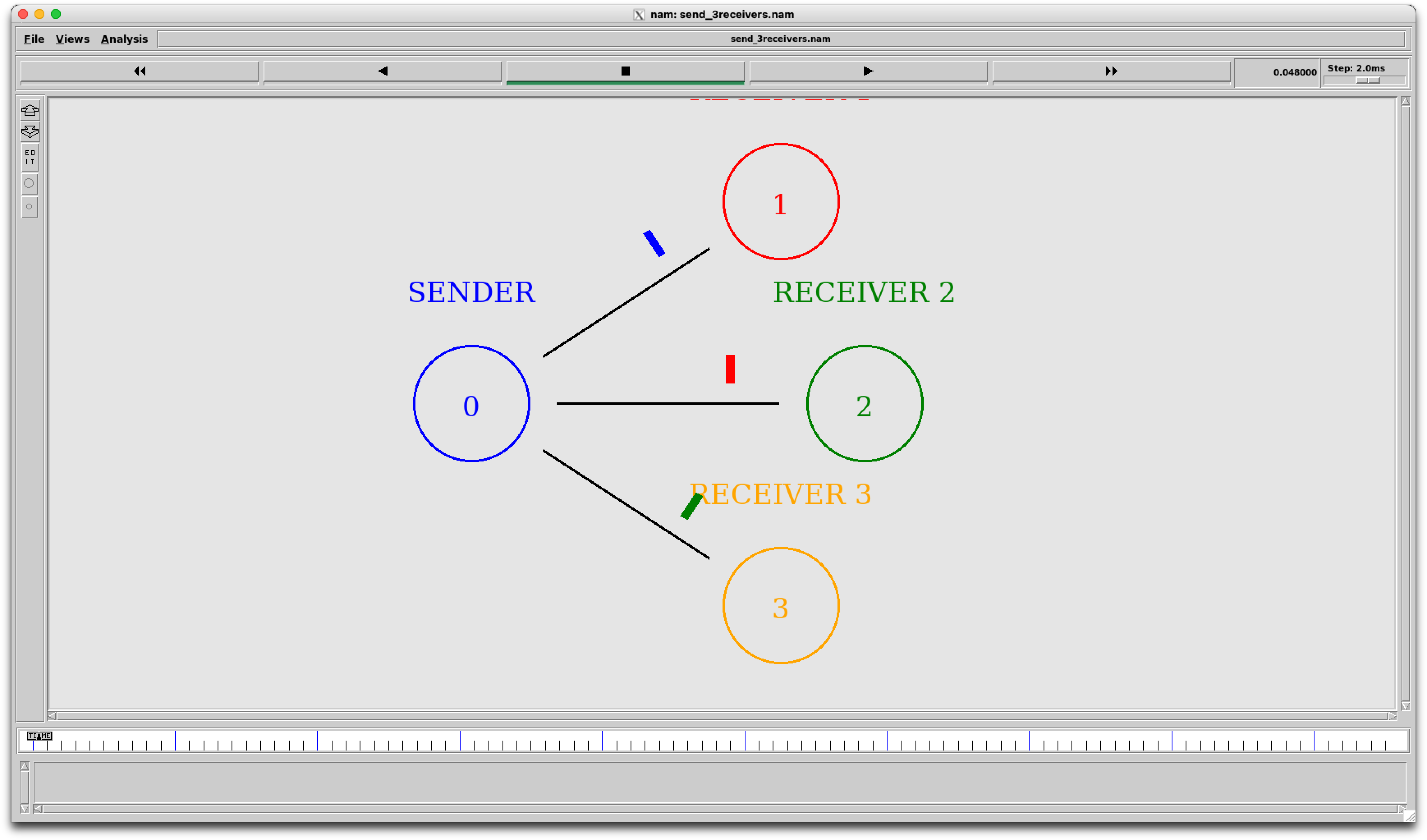 THE INCLUDED SAMPLE · ONE SENDER / THREE RECEIVERS
Add your own Tcl scripts to ~/NS2Nam/simulations on macOS to keep them between sessions.
Uninstall when needed
Review the README for uninstall instructions. The uninstaller asks for confirmation, preserves the simulations folder, removes NS2-Nam resources, and revokes the XQuartz localhost grant.
Review README for uninstall ↗